AR Draw Sketch : Trace Art 3D
- 3.3
- Rating
- 500.00K
- Installs
- Free
- Price
 Analysis by App-foxy
I found AR Draw Sketch : Trace Art 3D most interesting as a bridge between a blank page and a finished reference image. It is a free art and design app from Ghanshyam Sahu that uses the phone camera to place a drawing guide into the real world, so you can look through the screen and trace what appears there. That sounds simple, but the difference from ordinary sketching is important: instead of copying an image by constantly looking down at paper and back at a screen, I can use the camera view as the working surface.
My first impression is that this is aimed at approachable drawing rather than professional illustration. The appeal is immediate for beginners, children, casual anime fans, craft makers, and anyone who wants help getting proportions onto paper. It also has a useful “anything” quality: the same basic workflow can be used for a character, a logo idea, a household object, lettering, or a reference image for a handmade project. I would not treat it as a replacement for a full digital drawing studio, but I can see why it has reached more than 500K installs.
How the camera-based drawing workflow feels in practice
The core experience depends on positioning the phone so the reference appears where you want to draw. That makes setup more physical than in a normal sketching app. With a conventional tracing overlay, I can simply place a transparent sheet over an image or use a screen-based layer. Here, the camera view changes the relationship between the phone, the paper, and the subject. The benefit is that I can work on a larger surface and keep the reference visually aligned with it.
You May Also Like

 Blood Strike: 2.5 Anniversary
Blood Strike’s Loadouts Turn Every Drop Into a Tactical Gamble
A close look at Blood Strike’s custom loadouts: how fast access to signature weapons reshapes its battle royale rhythm, rewards preparation, and narrows the gap between fights.

 Pandora - Music & Podcasts
Pandora’s Music Is Easy to Start, but Harder to Recover
Pandora’s strength is its low-effort path from a seed to a station. Its weak spot is how much confidence it asks you to place in connection, setup, and quiet recovery.

 8 Ball Pool
 Is Built on Rivalries, Rematches, and Routine
A close look at the rivalries, rematches, shared routines, and unanswered safety questions that turn a quick pool match into a persistent mobile community.

 Samsung Music
’s Quiet Strength Is Playing What You Already Own
Its reach comes less from spectacle than from dependable access to a personal library. That simplicity is both the app’s strongest retention engine and its ceiling.

 AccuWeather: Weather Radar
AccuWeather Review: A Quick, Clear Forecast for Everyday Decisions
For everyday plans, the best forecast is the one you can understand quickly. AccuWeather makes rain timing, radar, and local conditions easy to act on, with a few trade-offs.

 Hill Climb Racing
Why Hill Climb Racing Still Turns Crashes Into One More Run
A tiny car, a bumpy hill and one more upgrade: Hill Climb Racing keeps resurfacing because its simple chaos makes every near-miss feel personal.
More From Our News Desk



I found the best results come from treating the app as a guide, not an automatic drawing machine. It helps me judge where lines should go, but my hand still controls the pencil. That distinction matters because the final quality depends on lighting, camera angle, paper placement, and how steadily the phone is held. Someone expecting a one-tap conversion from photo to polished artwork may be disappointed. Someone who wants a visual scaffold for learning or copying will understand the app much faster.
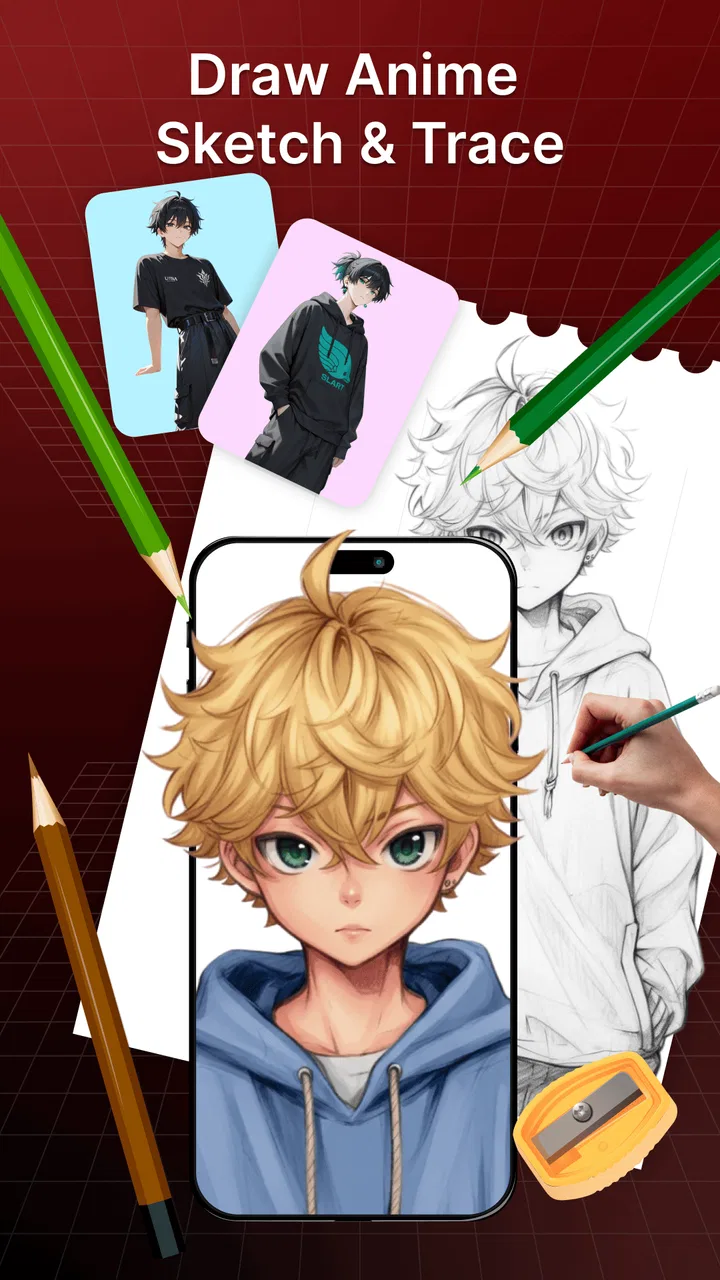
The short description, “AR Draw Sketch,” is accurate but rather narrow. The practical use is broader than a quick doodle: I can use the overlay to block in a rough composition, transfer a simple design to paper, or practice the outline of an anime face before adding details. The app is especially useful when proportion is the main obstacle. If I already know exactly how to construct a figure, a standard drawing app with layers and brush controls would probably be more efficient.
Why the first few minutes matter
There is a small learning curve because the phone becomes part of the drawing setup. I need to find a comfortable viewing angle, avoid shifting the device, and make sure the paper stays in the same place. This is not a serious flaw, but it changes the experience from casual tapping to a little bit of physical preparation. I recommend beginning with a simple outline rather than a detailed portrait. That makes it easier to understand how the camera view corresponds to the pencil movement.
A useful habit is to establish the large shapes first. I would lightly mark the outer silhouette, major horizontal lines, and the position of the eyes or other key landmarks before attempting small details. This reduces the risk of producing a beautifully traced eye on a face whose overall proportions are wrong. The app can make copying easier, but it cannot decide which structural marks deserve attention first.
For lettering or a logo sketch, I would also keep the reference uncomplicated. Thin details can become hard to follow when the phone moves or the image is visually busy. A clean source gives the overlay a clearer purpose and makes the finished paper drawing look more intentional. That is one of the less obvious trade-offs: the app’s usefulness is strongly connected to the quality and simplicity of the reference I choose.
Speed expectations and the cost of setup
In terms of perceived speed, I would describe the app as quick to understand but not always quick to use. The basic idea is clear almost immediately, yet a careful drawing session still needs time for positioning and checking. This is different from opening a basic sketchpad and drawing straight away. The camera-based approach saves effort when I am struggling with proportions, but it adds a setup step before the pencil touches the page.
That trade-off is worthwhile for a specific kind of task. If I want to recreate a small character image for a notebook, the overlay can get me past the intimidating blank page faster than freehand drawing. If I only want to jot down a spontaneous idea, the camera arrangement feels unnecessary. In that situation, a simple notes app, paper sketchbook, or conventional digital canvas is the better choice because there is less between the idea and the first mark.
The app is also more efficient when I prepare the workspace before opening it. A stable surface, a sheet that will not slide, and a reference with clear shapes reduce interruptions. I would avoid starting with a complicated scene while standing or moving around. The more the setup changes, the more time I spend correcting alignment instead of drawing.
What happens during longer or heavier drawing sessions
Heavy use is less about the number of brush strokes and more about how long the camera remains active while I work. A short tracing exercise is a relatively focused task. A detailed illustration, however, means repeatedly checking the phone, adjusting my hand position, and preserving the relationship between the screen and the paper. That can make the session feel more demanding than ordinary sketching, even when the drawing itself is simple.
I would divide a long project into stages. First, I would use the overlay for the broad outline. Then I would pause to inspect the paper without relying on the screen. Finally, I would add details and shading independently. This workflow prevents the camera guide from becoming a crutch and reduces the frustration of trying to keep every tiny feature aligned for the entire session.
For an everyday example, imagine that I want to decorate a birthday card with an anime-style cat. I could choose a clear reference, position the card under the camera view, trace the silhouette and facial landmarks, and then put the phone aside while adding color and personal details. That is where the app makes sense: it helps me transfer the recognizable structure, while the final card still feels handmade rather than like a mechanically copied image.
For a mural, large canvas, or highly detailed portrait, I would be more cautious. The physical distance between the phone and the surface becomes more awkward, and a small movement can affect the guide. A projector, printed grid, or desktop reference may be more practical for large work. This app is strongest when the drawing surface and the phone can remain comfortably within view without forcing an unnatural posture.
Stability, alignment, and recovery when something shifts
Reliability here should be judged by more than whether the app opens. The important question is whether the drawing guide remains useful while I am working. Camera-based tracing is inherently sensitive to movement. If the phone shifts, the paper moves, or I change the viewing angle, the overlay may no longer match the marks I have already made. That is a limitation of the workflow itself, not something I would blame entirely on the developer.
My practical solution is to create small checkpoints. After placing the paper, I would make a few light reference marks around the outside of the composition. If the phone needs repositioning, those marks help me restore the original view. I would also avoid resting my hand against a loose phone stand or balancing the device somewhere unstable. These are simple precautions, but they make recovery much less annoying.
When alignment is lost, I would not try to correct every detail immediately. I would return to the largest landmarks, compare them with the existing sketch, and continue only after the main shape looks right. This prevents a minor shift from turning into a chain of increasingly inaccurate corrections. The app is most forgiving when I use it for construction lines and broad forms rather than treating every overlay position as permanent.
The rating of 3.3 from around 421 ratings suggests that the experience is useful for some people but not universally smooth. I read that as a reason to keep expectations realistic. The concept is appealing, yet camera alignment, device handling, and personal drawing habits can affect satisfaction. I would recommend testing it with a small sketch before committing to a large project or buying anything inside the app.
Device constraints and practical comfort
The app requires Android 8.0 or newer, so compatibility is not aimed at very old Android phones. That minimum is reasonable for a camera-oriented drawing tool, but compatibility alone does not guarantee a comfortable session. Screen size, camera placement, brightness, and the physical shape of the phone all matter. A small display may make details harder to follow, while an awkward camera position can force the device into an inconvenient angle.
I would also consider the phone’s available resources during a long camera session. I am not going to pretend that every device will behave identically, because the experience can vary with hardware and the surrounding conditions. Keeping the lens clean, closing unrelated apps, and avoiding direct glare are sensible steps. They do not transform the app into a professional workstation, but they remove several avoidable sources of friction.
Resource demands are particularly relevant when the phone is mounted above the paper for a while. A device that becomes warm or needs frequent charging can make a creative session uncomfortable, even if the drawing itself is enjoyable. For a quick outline, this is unlikely to matter much. For extended work, I would plan breaks and keep the setup easy to dismantle. That is a better approach than assuming the phone can remain active indefinitely without affecting comfort.
The camera view also means the environment matters. A dim room, strong reflections, or a cluttered background can make the reference harder to read. I would use even lighting and a surface with enough contrast against the paper. This is an important difference from a normal drawing app: the quality of the physical workspace becomes part of the app experience.
Free access, version, and the point where payment matters
AR Draw Sketch is free to install, which makes it easy to try without committing money first. The current version is 3.0, and the app is rated for Everyone, so its intended audience is broad. That combination suits casual experimentation: a parent can introduce the basic idea to a child, a beginner can test tracing, and an experienced hobbyist can see whether the camera workflow fits a particular project.
There are in-app purchases priced at $5.49 per item. I would not pay automatically just because the app is interesting. I would first confirm that the free experience handles the type of reference and drawing I actually want to make. The value of an optional purchase depends on whether it removes a limitation that affects my regular workflow, not on the promise of having more tools in theory.
This is also why I would keep the app beside, rather than instead of, a conventional drawing tool. Digital art apps usually offer more control over layers, undo history, brushes, color, and precise editing. AR Draw Sketch offers a different advantage: it connects the reference to a physical drawing surface. If my goal is a finished digital illustration, the conventional app is likely better. If my goal is to get a clean outline onto paper, this one has the more relevant idea.
Who will get the most from it
I think the strongest audience is beginners who understand what they want to draw but struggle to start. The camera guide can lower the barrier to drawing anime faces, simple objects, decorative shapes, and other recognizable subjects. It is also a good fit for craft projects where the final result needs to exist on paper, card, fabric, or another physical surface rather than only on a screen.
Teachers, parents, and hobby groups could use it for guided exercises, although the physical setup means each person needs a suitable way to view the phone. It could also help someone study proportion: trace the major forms first, then hide the reference and try to redraw the same subject from memory. That turns the app from a copying aid into a practice tool, which is a more valuable long-term use than tracing everything permanently.
I would skip it if I need precise vector artwork, advanced layer management, professional photo editing, or a fully digital workflow. I would also skip it for projects where the phone cannot stay stable or where I need to work quickly without arranging a camera view. Those are not small details; they define whether the central feature helps or gets in the way.
My performance verdict after weighing the trade-offs
My overall view is positive but specific. AR Draw Sketch is not impressive because it replaces drawing skill; it is useful because it gives beginners a practical way to organize what their hands are trying to draw. The experience feels fastest when the reference is simple, the surface is stable, and the session has a clear goal. It feels less convenient when I am improvising, working at a large scale, or expecting professional digital controls.
Stability depends heavily on the physical setup, so I would judge the app as a guided tracing companion rather than a frictionless studio. Its resource demands are also best managed with sensible preparation: clean camera, steady placement, good light, and breaks during longer sessions. If the guide shifts, returning to large landmarks is more effective than chasing every detail. Those habits make a noticeable difference to the final result.
With an average rating of 3.3 and more than 500K installs, it has clearly attracted a substantial audience while still leaving room for mixed experiences. I would recommend trying the free version with one small drawing first. If that test shows that the camera arrangement feels natural on your device, the app can be a friendly and useful addition to an art toolkit. If it feels awkward immediately, a regular sketching app, a printed reference, or a grid method will probably serve you better.
My recommendation is to use it as a starting aid, not as a substitute for learning to draw. That is where I believe it delivers the most honest value: it helps me overcome blank-page anxiety, transfer proportions to a physical project, and gradually build confidence. For casual art and design work, that is enough to make it worth trying, provided I accept the alignment and setup trade-offs that come with camera-based tracing.
FAQs for AR Draw Sketch : Trace Art 3D
01What is AR Draw Sketch: Trace Art 3D and how does it work?
AR Draw Sketch: Trace Art 3D is an innovative app that uses augmented reality (AR) to help users trace and draw with precision. By overlaying digital images onto real-world surfaces through your device’s camera, it guides you in sketching complex designs effortlessly. Ideal for artists and beginners alike, it brings a new dimension to traditional drawing.
02What are the main features of AR Draw Sketch: Trace Art 3D?
The app offers a variety of features, including a vast library of templates, adjustable sizes for your sketches, and real-time AR guidance. Its user-friendly interface makes it simple to select, project, and trace images. Additional features include customizable brushes, color palettes, and the ability to import personal images for tracing.
03Is AR Draw Sketch: Trace Art 3D suitable for beginners?
Absolutely! AR Draw Sketch is designed to support artists of all levels. Beginners will find the step-by-step AR guidance particularly helpful in developing their skills. The app simplifies the drawing process by projecting images onto paper, allowing even those with no prior experience to create impressive art.
04What devices are compatible with AR Draw Sketch: Trace Art 3D?
AR Draw Sketch is compatible with most Android and iOS devices that support AR functionality. For the best experience, ensure your device has the latest software updates and sufficient hardware capabilities, such as a reliable camera and processor, to handle augmented reality applications smoothly.
05Does AR Draw Sketch: Trace Art 3D require an internet connection to function?
While AR Draw Sketch can function without an internet connection once downloaded, some features, like accessing the online template library or sharing your creations, require internet access. For offline use, make sure to download any templates you wish to use in advance.
Pros
- Easy-to-use tracing feature for beginners.
- Wide variety of templates available.
- Supports both 2D and 3D sketches.
- User-friendly interface with intuitive controls.
- Offline mode available for sketching anywhere.
Cons
- Limited free content; many features are paid.
- Occasional glitches with 3D rendering.
- Ads can be intrusive during use.
- Requires a stable hand for best results.
- Some users report crashes on older devices.

AR Draw Sketch : Trace Art 3D
Gallery